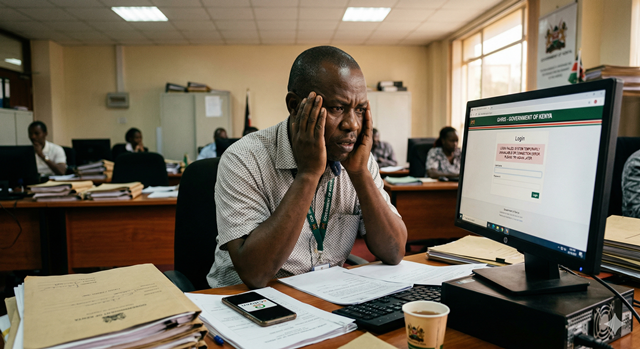
Every year, thousands of Kenyan government employees miss the KRA tax return deadline — not because they forgot, but because they couldn't find their P9 form. If you are a civil servant, TSC teacher, county employee, or any other public servant, your P9 form is waiting for you right now on the GHRIS portal — and this guide shows you exactly how to get it in minutes.
Whether it's your first time filing returns or you've done it before, this is the only guide you need. We cover everything: what the P9 form is, where to find it on GHRIS, how to use it on iTax, and what to do if something goes wrong.
TABLE OF CONTENTS
- What is a P9 Form and Why Do You Need It?
- Who Needs a P9 Form in Kenya?
- KRA Tax Return Deadline — Don't Miss It
- What You Need Before You Start
- Step-by-Step: How to Download Your P9 Form on GHRIS
- How to Read and Understand Your P9 Form
- How to Use Your P9 Form to File Returns on KRA iTax
- Common Problems & How to Fix Them
- Frequently Asked Questions
1. What is a P9 Form and Why Do You Need It?
A P9 form is an official annual tax deduction card issued to every employed person in Kenya. It is a summary of everything related to your income and tax for the full financial year — from January to December.
Your employer (in this case, the Government of Kenya through the payroll system) is legally required to issue you a P9 form every year. As a government employee, yours is generated automatically and made available on the GHRIS portal.
📋 WHAT YOUR P9 FORM CONTAINS
✔ Gross Pay — Your total earnings before any deductions for the year
✔ PAYE Deducted — The total income tax (Pay As You Earn) withheld from your salary
✔ Benefits in Kind — Non-cash benefits such as housing or car allowances
✔ Personal Relief — The standard KRA personal relief amount applied to your tax
✔ Insurance Relief — Deductions for qualifying life or health insurance premiums
✔ Net PAYE — The final tax figure after all reliefs have been applied
When you file your annual tax returns on KRA's iTax portal, these figures from your P9 form are what you enter into the system. Without the P9, you are essentially guessing — and guessing wrong can result in penalties.
2. Who Needs a P9 Form in Kenya?
Under Kenyan tax law, every employed person is required to file annual income tax returns, even if all your tax was already deducted through PAYE. This is not optional. The P9 form applies to:
- 🏛️ Civil Servants — All Ministry and State Department staff
- 🗺️ County Government Employees — Executive and assembly staff across all 47 counties
- 📚 TSC Teachers — Public school teachers under the Teachers Service Commission
- 👮 Uniformed Services — Kenya Police, Prisons Service, NYS, and KDF personnel
- 🏥 Public Health Workers — Government nurses, doctors, and clinical officers
- ⚖️ Judiciary Staff — Magistrates, court clerks and judiciary employees
⚠️ IMPORTANT — FILING IS MANDATORY
Many government employees assume that because PAYE is automatically deducted from their salary, they don't need to file returns. This is wrong. KRA requires you to file an annual return even if you owe zero tax. Failure to file attracts a penalty of Ksh 2,000 per month for every month you are late.
3. KRA Tax Return Deadline — Don't Miss It
The KRA deadline for filing annual income tax returns in Kenya is 30th June every year. This covers income earned in the previous calendar year (January to December).
| Tax Year | Income Period | Filing Deadline |
|---|---|---|
| 2024 Returns | January – December 2024 | 30 June 2025 |
| 2025 Returns | January – December 2025 | 30 June 2026 |
💡 PRO TIP — FILE EARLY
The KRA iTax portal gets extremely slow and often crashes in the final week of June as millions of Kenyans rush to file. Download your GHRIS P9 form as soon as it becomes available (usually February or March) and file your returns early. It takes less than 15 minutes when the system isn't congested.
4. What You Need Before You Start
Before you log in to download your P9 form on GHRIS, have the following ready:
📋 REQUIREMENTS CHECKLIST
✔ Your GHRIS login credentials — UPN (username) and password
✔ A registered GHRIS account — register at ghris.go.ke if you haven't yet
✔ Your KRA PIN — needed for filing on iTax (apply at itax.kra.go.ke if you don't have one)
✔ A device with internet access — phone, tablet, or computer
✔ A PDF viewer — to open and read the P9 form once downloaded
5. Step-by-Step: How to Download Your P9 Form on GHRIS
Follow these steps exactly. The process is straightforward and takes under three minutes.
Step 1 — Go to the Official GHRIS Portal
Open your browser and navigate to the official GHRIS website. Do not use third-party links or WhatsApp-shared URLs — always type the address directly.
Step 2 — Log In with Your UPN and Password
On the homepage, enter your Unified Payroll Number (UPN) as your username and your password, then click "Login". If you have forgotten your password, click "Forgot Password" to reset it via your registered email or phone number.
⚠️ Can't log in? Skip to Section 8 — Common Problems & Fixes for a solution.
Step 3 — Navigate to the P9 Form Section
After logging in, you will be on your employee dashboard. Look for the following path in the left sidebar or top navigation menu:
My Records → P9 Form
On some account types the path may be: Payroll → P9 Tax Deduction Card. Look for any menu item containing "P9" or "Tax Deduction."
Step 4 — Select the Tax Year
A list or dropdown will appear showing the available tax years. Select the year you need — for example, 2024 if you are filing your 2024 returns before the June 2025 deadline.
✅ GHRIS typically makes the previous year's P9 form available from February or March of the following year. If the year you need is not yet showing, check back in a few weeks or contact your HR office.
Step 5 — Download the P9 Form as a PDF
Click the "Download" or "View P9" button. The form will open as a PDF document. Save it to your device:
- 📱 On Phone: Tap the share icon → Save to Files or Google Drive
- 💻 On Computer: Click the download icon in the PDF viewer, or press Ctrl + S (Windows) / Cmd + S (Mac)
Save the file with a clear name such as "P9_Form_2024_[YourName].pdf" so it is easy to find when you sit down to file your KRA returns.
Step 6 — Log Out Securely
Always click "Logout" after downloading your form, especially on shared or public devices. Your GHRIS account contains sensitive salary and personal data.
6. How to Read and Understand Your P9 Form
Once you have the P9 form open, it may look confusing at first glance. Here is what each field means and which figures you will need when filing on iTax:
| P9 Field | What It Means | Used in iTax? |
|---|---|---|
| Basic Salary | Your monthly base salary before allowances and deductions | ✅ Yes |
| Benefits/Allowances | Housing, transport, commuter, and other taxable allowances | ✅ Yes |
| Gross Pay | Total taxable income for the year (basic + allowances) | ✅ Yes — primary figure |
| PAYE Deducted | Total income tax already withheld from your salary for the year | ✅ Yes — critical figure |
| Personal Relief | Standard KRA relief (currently Ksh 28,800/year) that reduces your tax liability | ✅ Yes |
| Insurance Relief | Tax relief for qualifying life or education insurance premiums paid | If applicable |
| Net PAYE | The final tax amount after all reliefs — this is what you actually paid | ✅ Yes — for verification |
⚠️ CHECK YOUR TOTALS
Before filing, verify that your P9 totals match what you actually received each month. If the annual gross pay on your P9 looks significantly different from your actual salary × 12, contact your HR office before filing — an error on the P9 will carry over into your tax return and may trigger a KRA audit query.
7. How to Use Your P9 Form to File Returns on KRA iTax
Once you have downloaded your P9 form, here is a quick walkthrough of how to use it on KRA's iTax portal to file your annual returns. This is a summary — for the full iTax guide, see our dedicated article.
Step 1 — Log in to KRA iTax
Go to itax.kra.go.ke and log in using your KRA PIN and password. If you have forgotten your iTax password, click "Forgot Password" on the login page.
Step 2 — Click on "Returns" → "File Return"
From the iTax dashboard, hover over the "Returns" menu at the top and select "File Return". Then choose Income Tax — Resident Individual (IT1) as the return type.
Step 3 — Select the Return Period
Select the year you are filing for — for example, January 2024 to December 2024. Click Next.
Step 4 — Fill in Section F (Employment Income)
This is where your P9 form comes in. In Section F of the return form, you will enter the figures directly from your P9:
- Gross Pay → Enter the annual gross pay figure from your P9
- Benefits/Allowances → Enter from your P9 benefits column
- PAYE Withheld → Enter the total PAYE deducted from your P9
- Personal Relief → Enter Ksh 28,800 (or as shown on your P9)
- Insurance Relief → Enter only if you have qualifying insurance
💡 KEEP YOUR P9 OPEN SIDE BY SIDE
Open your P9 PDF on your phone while filling in iTax on your computer. This way you can read the figures easily without switching windows. Use a second screen, split-screen mode, or simply print the P9 form first.
Step 5 — Submit and Download Your Acknowledgement Receipt
Once all fields are filled, click "Submit". iTax will calculate whether you owe additional tax or are due a refund — for most PAYE employees, the result is zero balance since your employer has already paid the correct tax throughout the year.
After submission, download and save your acknowledgement receipt. This is your proof of filing — keep it safely alongside your P9 form.
8. Common Problems & How to Fix Them
| Problem | Likely Cause | Fix |
|---|---|---|
| P9 Form not available on GHRIS | Too early in the year or data not yet uploaded | P9 forms are typically uploaded February–March. Check back later or request from your HR office |
| Wrong figures on my P9 | Payroll error or missing months' data | Do not file with incorrect figures. Report to HR in writing and request a corrected P9 before filing |
| Cannot log in to GHRIS | Forgotten password or wrong UPN | Click "Forgot Password" or contact GHRIS helpdesk: 020 2252299 |
| GHRIS portal is slow or down | High traffic during tax season | Access GHRIS early morning (before 8am) or late evening. Avoid peak hours in May and June |
| iTax showing tax balance owed | PAYE may have been underpaid, or data entry error | Double-check your P9 figures against what you entered. If figures are correct, consult a tax agent before paying |
| Forgot KRA PIN or iTax password | Inactive account or changed contact details | Visit itax.kra.go.ke → "Forgot PIN/Password" or visit the nearest KRA office for in-person reset |
| P9 not matching my payslips | Deductions like NHIF, NSSF appear on payslips but not P9 | This is normal — the P9 only shows tax-relevant figures. NHIF/NSSF are separate deductions not reflected on the P9 |
9. Frequently Asked Questions
When is the P9 form available on GHRIS?
The P9 form for the previous year is typically uploaded to GHRIS between February and March of the following year. For example, your 2024 P9 form should be available by February or March 2025. If it is not yet showing, check back later or contact your HR department.
Do I need a P9 form to file KRA returns?
Yes. While you can technically attempt to fill in the iTax return without a P9, you would be working from memory or estimates — which risks entering incorrect figures. KRA can cross-reference your submission against what your employer reported, and discrepancies can trigger follow-up queries or penalties. Always use your official P9 form.
Can I get my P9 form from HR instead of GHRIS?
Yes. If you are unable to access GHRIS, you can request a printed or emailed copy of your P9 form directly from your HR department or payroll officer. However, the GHRIS portal is the fastest and most convenient method, and the document is exactly the same.
What if I worked for both the government and a private employer in the same year?
You will need P9 forms from both employers. Combine the income from all employers when filling in Section F of your iTax return. Private employers issue P9 forms directly — contact your former employer's HR or payroll department to request it.
I have more than one government posting in a year — do I get one P9 or multiple?
If you were transferred between departments or counties within the same payroll system, your P9 should consolidate all postings into one annual summary. If you notice months missing, contact your HR office to confirm the consolidated figure before filing.
What happens if I file with wrong P9 figures?
If the error is discovered later — either by you or KRA — you can file an amended return on iTax. However, if the error results in underpayment of tax, interest and penalties may apply. This is why it's critical to verify your P9 figures before filing, and to report any errors to HR for correction first.
Is there a penalty for not filing KRA returns?
Yes. Failure to file an annual return attracts a late filing penalty of Ksh 2,000 per month for individuals. This accumulates for every month you delay after the 30th June deadline. Filing a nil return (even if your tax was fully covered by PAYE) is still required to avoid this penalty.
Can I use GHRIS on my phone to download the P9 form?
Yes. GHRIS is accessible via mobile browser on any smartphone. Visit ghris.go.ke on Chrome or Safari, log in, and navigate to the P9 section. The form will download as a PDF which you can open with any PDF viewer on your phone.
I am a retired civil servant. Where do I get my P9 form?
Pensioners may access their P9 through GHRIS as well, depending on how their pension is administered. If the P9 is not available on the portal, contact the Public Service Superannuation Scheme (PSSS) or the Pensions Department directly to request the document.
RELATED GUIDES
Also on the GHRIS & KRA Portal
This guide is for informational purposes only. Tax regulations in Kenya are subject to change. Always verify current requirements at www.kra.go.ke and access GHRIS only through the official portal at www.ghris.go.ke. For account-specific issues, contact the GHRIS helpdesk on 020 2252299 or email hrmis@publicservice.go.ke.