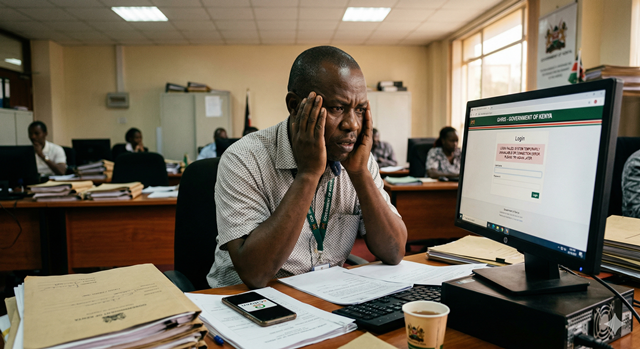
You just got your government job. Congratulations. Now your HR office has told you to "register on GHRIS" — and you have no idea where to start. You are not alone. Every month, thousands of newly employed civil servants, fresh TSC teachers, county staff, and uniformed service members search for exactly this guide.
This is the most complete, beginner-friendly GHRIS registration guide available. We walk you through every single step — from finding your UPN to logging in for the very first time — in plain language, with no assumptions about what you already know.
⏱ HOW LONG DOES THIS TAKE?
| 5 minRegistration time | FreeNo cost at all | Any devicePhone or computer |
TABLE OF CONTENTS
- What is GHRIS and What Can You Do With It?
- Who Should Register on GHRIS?
- What You Need Before You Register
- How to Find Your UPN — The Most Important Step
- Step-by-Step: How to Create Your GHRIS Account
- What to Do After Your First Login
- How to Register on GHRIS Using Your Phone
- Registration Problems & How to Fix Them
- Keeping Your GHRIS Account Safe
- Frequently Asked Questions
1. What is GHRIS and What Can You Do With It?
GHRIS stands for Government Human Resource Information System. It is a secure, government-run web portal that gives every public service employee in Kenya direct access to their employment and salary records — anytime, from anywhere, on any device.
Think of it as your personal digital HR office. Once you register and log in, here is everything you can do:
| Feature | What It Means for You |
|---|---|
| 📄 Monthly Payslips | Download your payslip every month — no more queuing at HR or waiting for a paper copy |
| 📋 P9 Tax Form | Get your annual P9 form for KRA tax returns directly from the portal |
| 🏖️ Leave Applications | Apply for annual, sick, maternity, or paternity leave online and track approvals |
| 🏦 Bank Details Update | Update your salary bank account directly — no forms, no HR visits |
| 👤 Profile Management | Update personal details, next of kin, address, and contact information |
| 🏛️ Salary Verification | Allow banks and SACCOs to verify your salary directly for loan applications |
| 📜 Service History | View your full employment history, promotions, and postings in one place |
✅ GHRIS IS FREE
GHRIS is completely free to use for all registered government employees. If anyone — a website, an agent, or a service provider — asks you to pay to access or register on GHRIS, it is a scam. Always use only the official portal at www.ghris.go.ke.
2. Who Should Register on GHRIS?
GHRIS registration is for anyone employed and paid through the Government of Kenya unified payroll system. This is a wide group — here is a clear breakdown:
✅ You SHOULD register if you are:
- A civil servant in any Ministry or National Government State Department
- A TSC teacher — permanent & pensionable or intern — in any public school
- A county government employee in any of Kenya's 47 counties
- A member of the Kenya Police Service, Kenya Prisons, NYS, or KDF
- A public health worker (nurse, doctor, clinical officer) on government payroll
- A Judiciary employee — magistrates, court clerks, and support staff
- An employee of a State Corporation or Parastatals paid via the unified payroll
- A pensioner receiving government pension benefits
❌ You cannot register if you are:
- A private school teacher not on TSC payroll
- A Board of Management (BOM) teacher paid from school funds, not TSC
- A private sector employee in any industry
- A casual or contract worker not on the unified government payroll
- A job applicant who has not yet been formally employed and posted
⚠️ NOT SURE IF YOU QUALIFY?
The simplest test: does your salary come directly from the government payroll? If your employer deducts PAYE, NSSF, and SHIF at source and pays you through a government-linked payroll system, you most likely qualify. Confirm with your HR department or TSC sub-county office if you are unsure.
3. What You Need Before You Register
Registration takes about 5 minutes — but only if you have all the required information ready. Many people fail at registration simply because they are missing one item. Gather everything below before you start.
📋 COMPLETE REGISTRATION CHECKLIST
Required — you cannot register without these:
✔ Unified Payroll Number (UPN) — your unique government employee identifier
✔ National ID Number — your Kenya national identity card number
✔ Date of Birth — exactly as it appears on your national ID
✔ Active email address — one you can access right now (a confirmation link will be sent here)
Strongly recommended — needed for password resets and security:
✔ Active phone number — a number you use daily (for OTP verification)
✔ A stable internet connection — mobile data or Wi-Fi, at least 3G
⚠️ USE A REAL, ACCESSIBLE EMAIL
Do not use a borrowed email or one you rarely check. After registration, GHRIS sends an account activation link to your email. If you cannot access that email, your account will not be activated. Use Gmail, Yahoo Mail, or any email you check regularly. If you do not have an email address, create one free at mail.google.com before starting.
4. How to Find Your UPN — The Most Important Step
Your Unified Payroll Number (UPN) is the single most important piece of information for GHRIS registration. It is your unique identifier in the government payroll system — without it, registration is impossible.
Here is exactly where to find it:
| Your Role | Where to Find Your UPN |
|---|---|
| Civil Servant / Ministry Employee | Your appointment letter, any previous payslip, or your HR/accounts department |
| TSC Teacher (P&P or Intern) | TSC appointment / deployment letter, TSC Online profile, your school BOM secretary, or TSC sub-county office |
| County Government Employee | County appointment letter or your county HR / payroll office |
| Kenya Police / Prisons / NYS | Your service record book or your station commander / unit HR officer |
| KDF (Military) | Your unit paymaster or records office at your base |
| Public Health Worker | Hospital administration office or county health department |
| Already Receiving Payslips (paper) | Your UPN is printed directly on your paper payslip — look for "UPN" or "Payroll No." |
💡 WHAT DOES A UPN LOOK LIKE?
A UPN is typically a numeric code, often 7 to 10 digits long. It may also include letters depending on your employer category. Examples of formats you might see: 1234567, TSC/12345, or CNT-00123456. Write it down and double-check it carefully — a single wrong digit means registration will fail.
⚠️ NEWLY EMPLOYED — READ THIS FIRST
If you were just posted or deployed in the last 1–2 months, your payroll record may not yet be created in the GHRIS system. Registration will fail even if you have the correct UPN. This is normal — government payroll processing has a setup lag for new employees. Wait one full pay cycle (until you receive your first salary) before attempting to register. Your UPN will be active in GHRIS once the payroll is set up.
5. Step-by-Step: How to Create Your GHRIS Account
You have your UPN, ID number, email, and phone number ready. Now let's register. Follow each step exactly as described below.
Step 1 — Go to the Official GHRIS Website
Open your web browser — Chrome, Firefox, Safari, or Edge all work. Type the following address directly into your browser's address bar:
www.ghris.go.ke
Press Enter. You will see the official GHRIS homepage.
⚠️ Security Warning: Only use www.ghris.go.ke — the official Government of Kenya domain. Do not use links from WhatsApp groups, SMS messages, Facebook posts, or third-party websites. Fake GHRIS sites exist and are designed to steal your login credentials.
Step 2 — Find and Click the Registration Link
On the GHRIS homepage, look for one of these options near the login form:
- "New User? Register Here"
- "First Time Login"
- "Create Account"
- "Register"
The exact label may vary slightly depending on when the portal was last updated, but it will always be near the main login form. Click it to proceed to the registration page.
Step 3 — Enter Your UPN
The first field you will see is for your Unified Payroll Number (UPN). Type it in carefully.
- Type it exactly as it appears on your appointment letter or payslip
- Do not add spaces, dashes, or extra characters unless they appear in your original UPN
- Double-check every digit before proceeding
After entering your UPN, the system may auto-populate some of your details — such as your name and employer — from the payroll database. If nothing appears, it may mean your payroll record is not yet created (see Section 8 for troubleshooting).
Step 4 — Enter Your National ID Number and Date of Birth
Next, enter your National ID number and date of birth. These are used to verify your identity against the payroll records.
- Enter your ID number exactly as it appears on your national identity card
- Enter your date of birth in the format requested — usually DD/MM/YYYY (e.g. 15/03/1990)
- Ensure your date of birth matches what was submitted to your employer during onboarding
⚠️ If your date of birth on the payroll record was entered incorrectly during your employment registration — for example, if your HR office made a typo — the system will reject your entry even if you enter the correct date. In this case, your HR department needs to correct the payroll record first before you can register.
Step 5 — Enter Your Email Address
Enter a valid, active email address that belongs to you. This email will be used for:
- Sending your account activation link (you cannot activate without this)
- Password resets in the future
- Occasional GHRIS system notifications
Use a personal email like Gmail or Yahoo — not a work email that you may lose access to if you change positions or retire. Type it carefully and confirm there are no typos.
Step 6 — Enter Your Phone Number
Enter your active Kenyan mobile number. Use the format 07XXXXXXXX or +2547XXXXXXXX as the system requires. This number will be used for:
- One-Time Password (OTP) verification
- Account recovery if you lose email access
Step 7 — Create a Strong Password
Choose a password for your GHRIS account. Most government portals require a password that contains:
- At least 8 characters
- At least one uppercase letter (e.g. A, B, C)
- At least one lowercase letter (e.g. a, b, c)
- At least one number (e.g. 1, 2, 3)
- At least one special character (e.g. @, #, !, $)
💡 CHOOSING A GOOD PASSWORD
A strong password example: Nairobi@2025! — it has uppercase, lowercase, numbers, and a special character. A weak password example: password123 — avoid anything this predictable.
Write your password down in a safe place immediately after creating it. Many people get locked out within days of registration because they forgot what they set. Do not save it on your phone's notes app — use a notebook or a secure password manager.
Enter your chosen password, then re-enter it in the "Confirm Password" field. Both must match exactly.
Step 8 — Submit the Registration Form
Review all the information you have entered one more time:
- ✅ UPN — correct and complete
- ✅ National ID — matches your ID card
- ✅ Date of Birth — correct format
- ✅ Email — accessible and no typos
- ✅ Phone number — active number
- ✅ Password — meets requirements, written down
Click "Submit" or "Register". If all details are valid, the system will display a success message and send a confirmation email to the address you provided.
Step 9 — Activate Your Account via Email
Open your email inbox immediately. You should receive an email from GHRIS within 5 to 15 minutes. The subject will be something like "GHRIS Account Activation" or "Activate Your GHRIS Account."
Open the email and click the activation link inside it. This link takes you back to the GHRIS portal and confirms your email address. Your account is now fully active.
⚠️ EMAIL NOT ARRIVING?
Check your Spam or Junk folder first — GHRIS emails are sometimes filtered as spam, especially on Gmail. If it is in spam, mark it as "Not Spam" and click the activation link.
If the email has not arrived after 30 minutes, check that you entered your email correctly during registration. If it was wrong, you may need to contact the GHRIS helpdesk to correct it: 020 2252299 or hrmis@publicservice.go.ke.
Step 10 — Log In for the First Time
Once your account is activated, go back to www.ghris.go.ke. On the login form:
- Enter your UPN in the username field
- Enter the password you created during registration
- Click "Login"
You are now inside your GHRIS dashboard. Welcome to your digital HR office.
6. What to Do After Your First Login
Most people log in for the first time, find their payslip, and log off — missing out on important setup steps. Here is a quick checklist of what to do immediately after your first login to make sure your account is properly configured:
✅ FIRST LOGIN CHECKLIST
1. Verify Your Personal Details
Go to your profile and confirm your full name, ID number, date of birth, and date of first employment are all correct. Any errors here can affect payroll calculations and should be reported to HR immediately.
2. Confirm Your Bank Account Details
Verify that your salary bank account name, bank name, branch, and account number are correctly captured. An error here means your salary goes to the wrong account.
3. Update Your Next of Kin
Many new employees skip this step — do not. Your next of kin details are critical for pension and death-in-service benefits. Enter the name, relationship, ID number, and contact of your nominated beneficiary.
4. Download Your First Payslip
Navigate to My Records → Payslip and download your most recent payslip. Check that the figures — basic salary, allowances, and deductions — match what you expect based on your appointment letter.
5. Note the Password Reset Process
Familiarise yourself with the "Forgot Password" option on the login page. Knowing where it is now means you will not panic when you eventually need it.
7. How to Register on GHRIS Using Your Phone
You do not need a computer to register on GHRIS. The entire process can be completed on a smartphone. Here is how to make it as smooth as possible on mobile:
- 📱 Use Google Chrome or Safari on your phone — they handle the GHRIS portal best
- 🌐 Make sure you have a stable internet connection — use Wi-Fi if available. Registration on a weak 2G signal may time out mid-process.
- 🔍 After opening ghris.go.ke, if the page looks too small, pinch to zoom in on the form fields to type comfortably
- 📧 Have your email app open in a second tab so you can quickly switch to it when the activation email arrives
- ⚠️ Avoid using private/incognito mode on your phone browser during registration — some portals block activation links in incognito mode
📱 NO OFFICIAL GHRIS APP
As of 2025, there is no official GHRIS mobile app on the Google Play Store or Apple App Store. Any app claiming to be "GHRIS" in the app stores is unofficial and potentially dangerous. Always use the browser version at www.ghris.go.ke on your phone.
8. Registration Problems & How to Fix Them
Registration fails for a handful of predictable reasons. Here is the complete troubleshooting guide:
| Error / Problem | Most Likely Cause | What to Do |
|---|---|---|
| "UPN not found" or "Invalid UPN" | Wrong UPN entered, payroll not yet set up, or new employee record not yet created | Double-check your UPN from your appointment letter. If recently deployed, wait 1–2 months and try again. Confirm with HR that your payroll record is active. |
| "ID number does not match" | ID number captured incorrectly in the payroll system during onboarding | Contact your HR department to verify and correct the ID number on your payroll record. This cannot be fixed by the employee directly. |
| "Date of birth does not match" | Wrong date format or a typo in the payroll record | Try all date formats (DD/MM/YYYY, MM/DD/YYYY). If none work, ask HR to check and correct your date of birth on the payroll system. |
| "Email already registered" | Your email was used in a previous registration attempt, or someone else used it by mistake | Try logging in with that email and the password you may have set. If access is not possible, contact GHRIS helpdesk: 020 2252299. |
| Activation email never arrived | Email in spam folder, wrong email entered, or server delay | Check spam/junk folder first. Wait 30 minutes. If still not received, contact GHRIS helpdesk to resend or correct the email address. |
| Activation link says "expired" or "invalid" | Activation links expire after a set time (usually 24–48 hours) | Go back to the GHRIS portal and look for a "Resend Activation Link" option on the login page, or contact the helpdesk. |
| Password does not meet requirements | Missing uppercase, number, or special character | Use the format: one uppercase + one lowercase + one number + one special character (e.g. Kenya@2025!) |
| Portal keeps timing out or crashing | High server traffic or slow connection | Try early morning (before 8am) or late evening. Avoid end-of-month rush periods. Switch to Wi-Fi if on mobile data. |
| "Account already exists" for your UPN | Someone (possibly HR) already created a partial account, or you registered before and forgot | Use the "Forgot Password" option on the login page to regain access. If that fails, contact GHRIS helpdesk to reset the account. |
GHRIS Helpdesk Contacts:
- 📞 Phone: 020 2252299
- 📧 Email: hrmis@publicservice.go.ke
- 🌐 Portal: www.ghris.go.ke
9. Keeping Your GHRIS Account Safe
Your GHRIS account contains your full salary history, personal details, bank account information, and tax records. This makes it a high-value target for fraud. Follow these rules to keep it secure:
- 🔒 Never share your password with anyone — not HR, not your headteacher, not a "GHRIS agent." No legitimate person will ever ask for it.
- 🔒 Never use the same password for GHRIS and other accounts like email or Facebook.
- 🔒 Change your password every 6 months or immediately if you suspect it has been compromised.
- 🔒 Always log out after each session, especially on shared devices like school computers or cyber cafes.
- 🔒 Do not access GHRIS on public Wi-Fi such as in hotels, restaurants, or matatus. Use your own mobile data when logging in away from home.
- 🔒 Check your payslip every month — if you see deductions or details you do not recognise, it could be a sign that your account has been tampered with.
⚠️ BEWARE OF GHRIS SCAMS
There are known cases of fraudsters creating fake GHRIS-looking websites or messaging government employees claiming to "help" them register for a fee, or asking for their GHRIS login to "check" something. GHRIS is free and requires no agent.
If your bank account details on GHRIS are changed without your knowledge, your salary could be diverted to another person's account. This has happened to government employees who shared their credentials. Treat your GHRIS password like your ATM PIN.
10. Frequently Asked Questions
I am a newly deployed TSC intern teacher. When can I register on GHRIS?
You can register on GHRIS once your payroll record has been created — this typically happens after your first salary payment. If you try to register before your payroll is set up, you will get a "UPN not found" error. Wait until you receive your first salary, then attempt registration. If the error persists after 2 months, contact your TSC sub-county director to confirm your payroll is active.
Can I register on GHRIS without an email address?
An email address is required for GHRIS registration because the account activation link is sent via email. If you do not have an email address, you need to create one before registering. A free Gmail account at mail.google.com takes about 3 minutes to set up. Use it only for official purposes like GHRIS and KRA iTax.
How do I know if my GHRIS account is already active?
Try logging in at www.ghris.go.ke with your UPN and a password you may have set before. If you are unsure whether you have registered, use the "Forgot Password" option and enter your UPN — if an account exists, a reset link will be sent to the registered email.
My name on GHRIS is wrong — how do I fix it?
If your name, ID number, or date of birth is incorrect on GHRIS, you cannot correct it yourself. These details are sourced directly from the payroll system. You need to notify your HR department in writing, providing a copy of your national ID as proof, and request them to update the payroll record. Once updated on the payroll, the correction will reflect on GHRIS within 1–2 pay cycles.
Can I have two GHRIS accounts — one for each employer?
No. GHRIS accounts are linked to your UPN, and each government employee has only one UPN. If you have changed government jobs, your UPN follows you and your GHRIS account remains the same. Contact the GHRIS helpdesk if your account does not reflect your current employer or posting.
Is my GHRIS data private?
Yes. Your GHRIS data is only accessible to you when you log in with your credentials. The only other parties who can access your data are your employer (through HR administration access) and any financial institutions you have explicitly authorised through the third-party verification feature. GHRIS does not share your data publicly.
I registered but cannot see any payslips — why?
If you have just registered and your payslip history is empty, there are two common reasons. First, you may be a new employee whose first salary has not yet been processed — payslips only appear after your first pay run. Second, your payroll record may not be fully set up yet. Give it one full pay cycle (one month) and check again. If payslips are still missing after two months, contact the GHRIS helpdesk.
Can I register on behalf of a colleague or family member?
You can assist someone to register by guiding them through the steps, but the account must be set up using their own email address, phone number, and a password only they know. Never create a GHRIS account using your own email for someone else — you would then control their account and receive all their financial information. This also creates a security and fraud risk.
NEXT STEPS ON GHRIS
Now That You Are Registered — What to Do Next
- How to Download Your GHRIS Payslip Online — Step-by-Step Guide
- How to Get Your P9 Form on GHRIS for KRA Tax Returns
- GHRIS for TSC Teachers: Complete Guide to Payslips, Leave & Transfers
- How to Update Your Personal Details on GHRIS (Bank Account, Next of Kin)
- GHRIS Password Reset & Login Problems — How to Fix Them
This guide is for informational purposes only. GHRIS registration processes may change as the portal is updated. Always use the official portal at www.ghris.go.ke. For account-specific assistance, contact the GHRIS helpdesk on 020 2252299 or email hrmis@publicservice.go.ke.