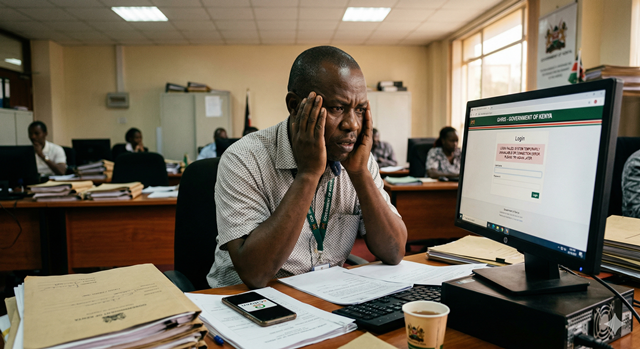
Nothing is more frustrating than needing your payslip urgently — for a loan, a mortgage, or a KRA deadline — and being locked out of GHRIS. It happens to thousands of government employees every single month. The good news is that almost every GHRIS login problem has a straightforward fix, and this guide walks you through all of them.
Whether you have forgotten your password, your account is locked, the portal is refusing your credentials, or the system is simply not loading — this is the only guide you need. We cover every scenario, step by step, in plain language.
🔐 WHAT IS YOUR PROBLEM? JUMP STRAIGHT TO THE FIX
TABLE OF CONTENTS
- Before You Reset — Try These First
- How to Reset a Forgotten GHRIS Password
- How to Unlock a Locked GHRIS Account
- Fixing "Wrong Username or Password" Errors
- What to Do When the GHRIS Portal is Down
- Reset Email Not Arriving — What to Do
- Lost Access to Your Registered Email
- Changed Your Phone Number
- Browser and Device Problems
- When to Call the GHRIS Helpdesk — and What to Say
- How to Prevent Login Problems in the Future
- Frequently Asked Questions
1. Before You Reset — Try These First
Before going through a full password reset, run through this quick checklist. Many GHRIS login problems are caused by small mistakes that are easy to fix in seconds.
✅ 60-SECOND LOGIN CHECKLIST — TRY ALL OF THESE FIRST
✔ Caps Lock is OFF — passwords are case-sensitive. Caps Lock being on is the single most common cause of failed logins.
✔ You are using your UPN as the username — not your name, ID number, email, or phone number. Your UPN is your Unified Payroll Number.
✔ You are on the correct website — the address bar should show www.ghris.go.ke and nothing else.
✔ Try a different browser — if you are using Chrome, try Firefox or Safari. Sometimes the issue is a browser caching problem, not your credentials.
✔ Try clearing your browser cache — press Ctrl + Shift + Delete (Windows) or Cmd + Shift + Delete (Mac), clear cached files, then try again.
✔ Try a different device — if your computer is having trouble, try logging in on your phone, or vice versa.
If all of the above checks out and you still cannot log in, proceed to the section that matches your specific problem below.
2. How to Reset a Forgotten GHRIS Password
Forgetting your GHRIS password is the most common problem — and the easiest to fix, as long as you can access the email address or phone number you registered with.
Step 1 — Go to the GHRIS Login Page
Open your browser and go to www.ghris.go.ke. Do not try to create a new account — you already have one.
Step 2 — Click "Forgot Password"
On the login form, look for a link that says:
- "Forgot Password?"
- "Reset Password"
- "Can't log in?"
Click it. You will be taken to the password reset page.
Step 3 — Enter Your UPN
On the reset page, enter your Unified Payroll Number (UPN). The system will look up your account and send a password reset link to your registered email address, or send an OTP to your registered phone number.
Step 4 — Check Your Email or Phone
Open your email inbox or check your phone for an SMS. The reset message will arrive within 5 to 15 minutes.
⚠️ Check your Spam or Junk folder if the email does not appear in your inbox. GHRIS system emails are frequently filtered as spam, especially on Gmail and Yahoo Mail.
Step 5 — Click the Reset Link and Set a New Password
Click the link in the email (or enter the OTP from the SMS). You will be taken to a page where you can set a new password. Choose something strong:
- At least 8 characters
- Mix of uppercase and lowercase letters
- At least one number
- At least one special character (e.g. @, !, #, $)
Example of a strong password: Mwalimu@2025!
Step 6 — Log In with Your New Password
Go back to the GHRIS login page. Enter your UPN and your new password. Click Login. You are in.
💡 WRITE IT DOWN IMMEDIATELY
The moment you set your new password, write it down in a safe place — a notebook, not your phone's notes app. Do not rely on memory alone. Most GHRIS lockouts happen because people reset their password, use it once, and then forget it again within days.
3. How to Unlock a Locked GHRIS Account
GHRIS will automatically lock your account after a certain number of failed login attempts — typically 3 to 5 consecutive wrong passwords. This is a security feature designed to prevent unauthorised access.
If your account is locked, you will usually see a message such as:
- "Your account has been locked due to multiple failed login attempts."
- "Account temporarily disabled. Contact your administrator."
- "Too many incorrect attempts. Please try again later."
Option 1 — Wait for the Auto-Unlock (Fastest)
Many GHRIS account lockouts are temporary — the account unlocks automatically after a waiting period, typically 30 minutes to 2 hours. If you are not in urgent need, simply wait and try again later.
Option 2 — Use the Password Reset Process
Even while locked, you can usually initiate a password reset. Follow the full steps in Section 2 above. Resetting your password via email also reactivates the account in most cases.
Option 3 — Contact the GHRIS Helpdesk
If the account remains locked after waiting and attempting a reset, contact the helpdesk directly. See Section 10 for exactly what to say when you call.
⚠️ STOP GUESSING YOUR PASSWORD
Every wrong password attempt adds to the lockout counter. If you are unsure of your password, stop guessing and go straight to the password reset process. Continued failed attempts will extend the lockout period or cause a permanent lock that requires helpdesk intervention.
4. Fixing "Wrong Username or Password" Errors
This is the most common error message on GHRIS — and it has several possible causes beyond simply mistyping your password.
| Possible Cause | How to Fix It |
|---|---|
| Wrong username format — using email or name instead of UPN | Use your UPN (Unified Payroll Number) only. Do not use your name, email address, or ID number as the username. |
| Caps Lock is on — password is case-sensitive | Check that Caps Lock is off. Re-type your password carefully, watching each character as you type. |
| Password was recently changed — using an old password | Try your most recently set password. If you have changed it multiple times, try the last 2–3 versions you remember. |
| Auto-fill entering wrong saved password | Clear the auto-filled fields and type your credentials manually. Browser auto-fill sometimes inserts outdated saved passwords. |
| Account not yet activated — registration incomplete | Check your email for the original GHRIS activation link. If not clicked, click it now. If it has expired, request a new one from the helpdesk. |
| UPN has changed — after a government restructuring or transfer | Confirm your current UPN with your HR department. Some transfers or restructurings result in UPN changes that must be updated in GHRIS. |
| Account suspended — due to payroll issues or HR action | Contact your HR department first to check if there is a payroll or employment issue. Then contact the GHRIS helpdesk. |
5. What to Do When the GHRIS Portal is Down
The GHRIS portal experiences downtime and slowdowns at predictable times. Knowing when to expect problems — and when to avoid trying — saves a lot of frustration.
When GHRIS is Most Likely to Be Slow or Down
| Period | Why | Best Alternative Time |
|---|---|---|
| 25th – 28th of every month | Salary payment period — hundreds of thousands of employees login simultaneously to check payslips | Before 7am or after 9pm |
| April – June every year | KRA tax return season — employees downloading P9 forms en masse | Early morning or weekend |
| Weekdays 8am – 5pm | Normal peak usage during office hours | Evening hours or Saturday morning |
| Planned maintenance windows | Government IT teams perform scheduled maintenance, often late night or weekends | Try the next morning |
How to Tell If GHRIS Is Down or If the Problem Is on Your End
- If the page does not load at all (blank page or "site can't be reached"): Try on a different network — switch from Wi-Fi to mobile data or vice versa. If it loads on the other network, the issue is your connection.
- If the page loads but login times out repeatedly: This is likely server overload. Wait and try again at off-peak hours.
- If you see a specific error message: Note the exact wording and refer to the relevant section in this guide or contact the helpdesk.
💡 BEST TIMES TO ACCESS GHRIS
The portal runs fastest between 6am – 8am on weekdays and throughout Saturday and Sunday mornings. If you have an urgent task — downloading a payslip for a loan or getting your P9 for KRA — plan your access around these windows.
6. Reset Email Not Arriving — What to Do
You clicked "Forgot Password," entered your UPN, and nothing arrived. Here is a systematic approach to track down the problem:
Step 1 — Check Your Spam or Junk Folder
This solves the problem 8 out of 10 times. Open your email, go to your Spam or Junk folder, and look for an email from GHRIS or from a go.ke domain. If you find it there, mark it as "Not Spam" before clicking the link so future emails go to your inbox.
Step 2 — Wait 30 Minutes
Government email servers can be slow. If the email is not in any folder after 5 minutes, wait at least 30 minutes before concluding it has not been sent. Do not click "Forgot Password" multiple times in quick succession — this can cause the system to send multiple conflicting reset links, only the last of which will be valid.
Step 3 — Confirm You Are Checking the Right Email
Think back to when you registered. Which email address did you use? If you have multiple email accounts — Gmail, Yahoo, work email — check all of them. The reset will only go to the exact email you registered with.
Step 4 — Search Your Inbox
Use the search bar in your email app. Search for keywords like "GHRIS", "payroll", "government", or "ghris.go.ke". Sometimes emails are auto-sorted into categories like "Promotions" or "Updates" in Gmail.
Step 5 — Contact the Helpdesk
If after 30 minutes the email has not arrived in any folder on any of your accounts, the email address on your GHRIS record may be wrong — perhaps a typo at registration. Contact the GHRIS helpdesk to verify and update your registered email. See Section 10 for contact details.
7. Lost Access to Your Registered Email
This is one of the trickiest situations — you know your UPN and your password may still work, but if you ever need to reset it, you cannot receive the reset link because you no longer have access to the email you used during registration.
Common reasons this happens:
- You registered with a work email from a previous employer or posting, and you no longer have access to it
- You registered with a family member's or friend's email and the relationship has changed
- You registered with an email account you no longer remember the password for
- The email service has been shut down (e.g. an old ISP email)
What to Do
THE ONLY SOLUTION — GHRIS HELPDESK
There is no self-service way to change your registered email without access to the old one. You will need to contact the GHRIS helpdesk directly and request an email address update on your account.
When calling, have your UPN, National ID number, and new email address ready. The helpdesk agent will verify your identity and update the email on your GHRIS record, after which you can reset your password normally.
To avoid this problem in future, always use a personal email address (like Gmail or Yahoo) for GHRIS registration — one that belongs only to you and that you will have indefinitely, regardless of job changes or postings.
8. Changed Your Phone Number
If you have changed your phone number and GHRIS sends OTP codes or account alerts to your old number, here is what to do:
If You Can Still Log In
Log into GHRIS, go to your Profile or Account Settings, and update your phone number directly. Save the change. Your new number will be used for all future OTPs and reset codes.
If You Are Locked Out and Cannot Receive the OTP
You will need to use the email-based reset method instead of the SMS method. On the password reset page, if given the option, choose to receive the reset link via email rather than SMS. Alternatively, contact the GHRIS helpdesk with your UPN and ID number to update your phone number on the system before attempting the reset.
⚠️ UPDATE YOUR PHONE NUMBER PROMPTLY
Whenever you change your phone number, log into GHRIS within the first week and update it under Profile settings. Do not wait until you are locked out — at that point, you may be unable to receive OTPs and will need helpdesk intervention to recover access.
9. Browser and Device Problems
Sometimes the login problem is not your credentials — it is your browser or device. Here are the most common technical issues and how to fix them:
| Problem | Fix |
|---|---|
| Page loads but login button does nothing | Disable any ad blockers or privacy extensions on your browser. These sometimes block form submissions on government portals. |
| Blank white page after clicking login | Clear your browser cache and cookies, then try again. Press Ctrl + Shift + Delete (Windows) or Cmd + Shift + Delete (Mac). |
| "Session expired" immediately after logging in | Your browser may be blocking cookies. Enable cookies for ghris.go.ke in your browser settings. Also try turning off private/incognito mode. |
| Keeps redirecting to the login page in a loop | Clear cookies specifically for ghris.go.ke, then restart your browser completely and try again. |
| Page looks broken or unstyled | Your browser may be outdated. Update Chrome, Firefox, or Safari to the latest version. Alternatively, switch browsers entirely. |
| Cannot access on phone browser | Switch to Chrome for Android or Safari for iPhone. Clear the mobile browser's cache and try again. Ensure you are not in incognito mode. |
| "This connection is not private" or SSL error | Check that your device's date and time are set correctly — incorrect system time causes SSL certificate errors. Update to the current date and time, then retry. |
| Portal works on data but not on Wi-Fi | Your Wi-Fi network may be blocking government domains (common on school or office networks with strict firewalls). Switch to mobile data. |
10. When to Call the GHRIS Helpdesk — and What to Say
If you have tried everything in this guide and still cannot access your account, it is time to contact the GHRIS helpdesk directly. Here is how to do it efficiently.
GHRIS Official Contact Details
📞 GHRIS HELPDESK CONTACTS
📞 Phone: 020 2252299
📧 Email: hrmis@publicservice.go.ke
🌐 Portal: www.ghris.go.ke
🕐 Hours: Monday to Friday, 8:00am – 5:00pm (Government of Kenya office hours)
What to Prepare Before You Call
Have the following information ready before calling or emailing the helpdesk. Agents will ask for all of this to verify your identity:
- ✅ Your Full Name as it appears on your national ID
- ✅ Your UPN (Unified Payroll Number)
- ✅ Your National ID Number
- ✅ Your Employer — ministry, county, TSC, police, etc.
- ✅ Your current posting / station
- ✅ The exact error message you are seeing (take a screenshot on your phone if possible)
- ✅ The email address you registered with (if you remember it)
What to Say When You Call
A clear, concise opening saves time. Here is a script you can follow:
SAMPLE SCRIPT
"Good morning. I am a [TSC teacher / civil servant / county employee] stationed at [your school or office]. My name is [your name] and my UPN is [your UPN]. I am unable to log into my GHRIS account. [Describe your specific problem — e.g., I forgot my password and the reset email is not arriving / my account appears to be locked / I no longer have access to my registered email]. I would like help regaining access."
Alternative — Contact Your HR Department First
For issues related to wrong personal details on GHRIS — such as incorrect name, ID number, date of birth, or posting — your HR department or TSC sub-county office can often resolve these faster than the central helpdesk, as they have direct access to the payroll records for your employer.
11. How to Prevent Login Problems in the Future
The best login problem is the one that never happens. Follow these habits to make sure you are never locked out of GHRIS when you need it most.
✅ THE GHRIS ACCOUNT PROTECTION CHECKLIST
🔒 Write down your password in a secure notebook immediately after setting it. Do not rely on memory alone.
🔒 Use a personal email for registration — not a work email you could lose access to if you change jobs or retire. Gmail is ideal.
🔒 Update your phone number on GHRIS immediately whenever you change your mobile number.
🔒 Log in at least once a month — even if just to download your payslip. Regular logins keep you familiar with your credentials and flag any suspicious activity early.
🔒 Download payslips early — do not wait until the last day of the month when the portal is at peak load. Log in on the 15th or 16th when payslips first appear.
🔒 Download your P9 form in February or March — as soon as it becomes available — instead of rushing in June with millions of other Kenyans.
🔒 Never share your credentials with anyone — not HR, not your headteacher, not a colleague, not a "GHRIS agent." Your account contains sensitive financial information.
12. Frequently Asked Questions
How many times can I try logging in before my account locks?
GHRIS typically locks an account after 3 to 5 consecutive failed login attempts. The exact number may vary depending on the current system configuration. To avoid triggering a lockout, use the "Forgot Password" option as soon as you are unsure of your password — do not keep guessing.
Can I reset my GHRIS password without an email address?
The primary reset method requires access to your registered email. If you registered a phone number, some versions of the portal offer SMS-based OTP reset as an alternative. If neither method is available to you, you must contact the GHRIS helpdesk in person or by phone to have your account manually reset.
My GHRIS password reset link says it has expired — what do I do?
Password reset links on GHRIS expire after a set time — usually 24 to 48 hours. If the link has expired, go back to the GHRIS login page, click "Forgot Password" again, and request a fresh reset link. Open and use it as quickly as possible after it arrives in your email.
I can log in but I am immediately logged out — what is happening?
This is almost always a browser session or cookie issue. Try the following in order: clear your browser cookies and cache, disable private/incognito mode, enable cookies for ghris.go.ke in your browser settings, and try a different browser. If the problem persists, try on a different device entirely.
Can I change my GHRIS username?
No. Your GHRIS username is your UPN (Unified Payroll Number), which is assigned by the government payroll system and cannot be changed by the employee. Your UPN is permanent and follows you throughout your government career — even if you are transferred between departments or counties.
I think someone else has accessed my GHRIS account — what should I do?
Act immediately. First, change your password right away using the reset process. Then check your payslip history and personal details — especially your bank account number — to confirm nothing has been altered. Report any suspicious changes to your HR department and the GHRIS helpdesk at 020 2252299 as a matter of urgency.
GHRIS says my account does not exist, but I have been getting payslips for years — why?
This sometimes happens after a government system upgrade or database migration. Your payroll record exists, but it may not have been fully migrated to the new GHRIS platform. Contact the GHRIS helpdesk with your UPN and they will trace and relink your account to the correct record.
Do I need to change my password regularly?
GHRIS may prompt you to change your password periodically as part of system security policy. Even if it does not prompt you, it is good practice to change your password every 6 to 12 months. Always update it immediately if you suspect it has been seen or used by anyone else.
RELATED GUIDES
More GHRIS Help for Government Employees
- GHRIS Registration: How to Create Your Account for the First Time
- How to Download Your GHRIS Payslip Online — Step-by-Step Guide
- How to Get Your P9 Form on GHRIS for KRA Tax Returns
- GHRIS for TSC Teachers: Complete Guide to Payslips, Leave & Transfers
- How to Update Your Personal Details on GHRIS (Bank Account, Next of Kin)
This guide is for informational purposes only. GHRIS portal features and processes may change as the system is updated by the Government of Kenya. Always access GHRIS only through the official portal at www.ghris.go.ke. For account-specific assistance, contact the GHRIS helpdesk on 020 2252299 or email hrmis@publicservice.go.ke during government office hours.