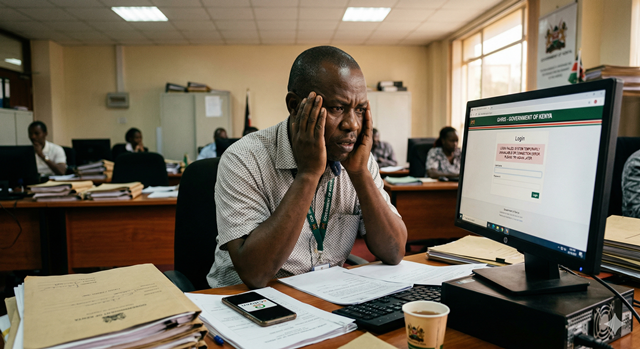
If you are a public school teacher in Kenya, GHRIS is one of the most important online tools available to you — yet most teachers barely scratch the surface of what it can do. From downloading your monthly payslip and accessing your P9 form for KRA tax returns, to applying for leave and tracking transfer requests, this guide covers everything a TSC teacher needs to know about the GHRIS portal.
This is the most complete GHRIS guide written specifically for teachers under the Teachers Service Commission (TSC). Whether you are newly deployed, mid-career, or approaching retirement, bookmark this page — you will come back to it.
QUICK FACTS — TSC & GHRIS
| 350,000+TSC Teachers on GHRIS | 47Counties Covered | 24/7Portal Access | FreeNo Cost to Use |
TABLE OF CONTENTS
- GHRIS and TSC — How They Work Together
- Which TSC Teachers Can Access GHRIS?
- How to Register on GHRIS as a TSC Teacher
- How to Download Your TSC Payslip on GHRIS
- How to Get Your P9 Form for KRA Tax Returns
- How to Apply for Leave on GHRIS
- Understanding Teacher Transfers and GHRIS
- Updating Your Personal Details on GHRIS
- Using GHRIS for Bank and SACCO Loan Applications
- Common GHRIS Problems for TSC Teachers & Fixes
- Frequently Asked Questions
1. GHRIS and TSC — How They Work Together
Many teachers are confused about the relationship between GHRIS and the TSC Online portal. They are two different systems that serve different purposes — understanding the difference will save you a lot of frustration.
| Feature | GHRIS (ghris.go.ke) | TSC Online (tsc.go.ke) |
|---|---|---|
| Monthly Payslips | ✅ Yes — download here | ❌ Not available |
| P9 Form (KRA Tax) | ✅ Yes — download here | ❌ Not available |
| Leave Application | ✅ Yes — apply here | Some leave types |
| Transfer Applications | View status only | ✅ Yes — apply here |
| Promotion & Career Records | View history | ✅ Full management |
| Salary Verification for Loans | ✅ Third-party access | ❌ Not available |
| Bank & Personal Details | ✅ Update here | Limited |
✅ THE SIMPLE RULE
GHRIS = Money matters (payslips, P9, loans, bank details). TSC Online = Career matters (transfers, promotions, discipline). You need both portals as a TSC teacher — they complement each other.
2. Which TSC Teachers Can Access GHRIS?
GHRIS is available to all teachers who are paid through the TSC unified payroll. This includes:
- ✅ Permanent & Pensionable (P&P) teachers — both primary and secondary school
- ✅ Intern teachers — deployed under the TSC internship programme
- ✅ Board of Management (BOM) teachers — only if their salaries are processed through the TSC payroll
- ✅ Technical and Vocational teachers — TVET instructors under TSC
- ✅ Special Needs Education (SNE) teachers — in government special schools
⚠️ WHO CANNOT USE GHRIS
Teachers employed directly by school Boards of Management and paid from school funds (not TSC payroll) are not on GHRIS. Similarly, teachers in private schools do not have GHRIS access. If you are unsure whether you are on the TSC payroll, check with your school's BOM secretary or contact TSC directly on 020 2892000.
3. How to Register on GHRIS as a TSC Teacher
If you have never logged into GHRIS before, you need to create an account first. Here is how:
Step 1 — Get Your Unified Payroll Number (UPN)
Your UPN is your GHRIS username. For TSC teachers, this is found on:
- Your TSC appointment letter
- Your previous paper payslips
- Your TSC Online account profile
- Your school's BOM secretary or TSC sub-county office
Step 2 — Go to the GHRIS Registration Page
Open your browser and go to www.ghris.go.ke. Click "New User? Register Here" or look for the registration/sign-up link on the homepage.
Step 3 — Fill in Your Details
Enter the following information as prompted:
- Your UPN
- Your ID Number (National ID)
- Your Date of Birth
- A valid email address (you will receive a confirmation link)
- A phone number (for OTP verification and password resets)
Step 4 — Set Your Password and Activate
Create a strong password, then check your email for an activation link. Click the link to activate your account. You can now log in at any time using your UPN and password.
💡 NEWLY DEPLOYED TEACHERS
If you were recently deployed or posted for the first time, your GHRIS account may not be active for the first one to two months while your payroll record is being set up. If registration fails, check with your TSC sub-county director to confirm your UPN has been created in the system.
4. How to Download Your TSC Payslip on GHRIS
Your monthly payslip is the most commonly accessed document on GHRIS. Here is the full process:
Step 1 — Log In to GHRIS
Go to www.ghris.go.ke and log in with your UPN and password.
Step 2 — Navigate to Payslip
From your dashboard, go to: My Records → Payslip (or look for "Pay Advice" in the menu).
Step 3 — Select the Month
Choose the month and year from the dropdown list. You can access payslips going back at least 12 months.
Step 4 — Download as PDF
Click "View Payslip" or "Download". Save the PDF to your phone or computer for your records.
Understanding Your TSC Payslip Deductions
TSC teacher payslips can be confusing because of the many deductions. Here is a quick reference for the most common ones:
| Deduction | What It Is | Who Receives It |
|---|---|---|
| PAYE | Income tax deducted at source based on your salary band | Kenya Revenue Authority (KRA) |
| SHIF / NHIF | Social Health Insurance Fund contribution for medical cover | Social Health Authority (SHA) |
| NSSF | National Social Security Fund pension contribution | NSSF |
| Housing Levy | Affordable housing contribution (1.5% of gross salary) | National Housing Corporation |
| TSC SACCO | Monthly savings or loan repayment to your SACCO | Your SACCO (e.g. Mwalimu SACCO) |
| Bank Loan | Loan repayment deducted at source by TSC on behalf of your bank | Your bank |
| PSSS | Public Service Superannuation Scheme — government pension scheme | Retirement pension fund |
⚠️ PAYSLIP DISCREPANCY?
If your net pay looks lower than expected, add up all your deductions on the payslip and subtract from your gross pay. If the numbers still don't add up, download payslips for the last 3 months and compare. Persistent errors should be reported to your TSC sub-county director and GHRIS helpdesk in writing.
5. How to Get Your P9 Form for KRA Tax Returns
Your P9 form is your annual tax summary — you need it to file your KRA income tax returns every year before 30th June. As a TSC teacher, your P9 is generated automatically by the government payroll and uploaded to GHRIS.
How to Download Your P9 Form
- Log in at www.ghris.go.ke
- Go to My Records → P9 Form (or Payroll → P9 Tax Deduction Card)
- Select the tax year you need (e.g. 2024 for returns due June 2025)
- Click "Download" and save the PDF
📅 WHEN IS THE P9 AVAILABLE?
GHRIS typically uploads the previous year's P9 forms between February and March. If the form is not yet available when you check, wait a few weeks and try again.
Failure to file your KRA returns by 30th June attracts a penalty of Ksh 2,000 per month — even if all your tax was already paid through PAYE. Filing is mandatory for all employed persons in Kenya.
For a complete step-by-step guide on using your P9 to file on KRA iTax, read our dedicated article: How to Get Your P9 Form on GHRIS for KRA Tax Returns.
6. How to Apply for Leave on GHRIS
TSC teachers are entitled to several categories of leave, and GHRIS allows you to apply for and track most of them online — eliminating the need to queue at your sub-county office for routine leave applications.
Types of Leave Available to TSC Teachers
- 📅 Annual Leave — 30 working days per year for P&P teachers
- 🤒 Sick Leave — Up to 90 days on full pay, 90 days on half pay per year
- 🤱 Maternity Leave — 3 months on full pay for female teachers
- 👨👧 Paternity Leave — 14 days on full pay for male teachers
- 📚 Study Leave — Granted for approved further education (with or without pay depending on terms)
- 🏥 Special Leave — For compassionate or exceptional circumstances, approved by TSC
Step-by-Step: Applying for Leave on GHRIS
Step 1 — Log in to GHRIS
Visit www.ghris.go.ke and log in with your UPN and password.
Step 2 — Go to Leave Management
On your dashboard, navigate to: My Records → Leave or look for "Leave Management" or "Apply for Leave" in the menu.
Step 3 — Select Leave Type
Choose the category of leave you are applying for from the dropdown. Ensure you select the correct type — applying for the wrong leave type can cause payroll issues.
Step 4 — Enter Leave Dates
Enter your start date and end date. The system will calculate the number of working days automatically. Confirm that the total days match your entitlement and do not exceed your remaining leave balance.
Step 5 — Submit for Approval
Click "Submit". Your leave application will go to your headteacher or line manager for approval. You will receive a notification once it is approved or rejected.
Step 6 — Track Your Leave Status
Return to the Leave section on GHRIS at any time to check the status of your application: Pending, Approved, or Rejected. If rejected, contact your headteacher for the reason before reapplying.
⚠️ IMPORTANT — ALWAYS APPLY IN ADVANCE
Absent from school without approved leave is treated as Absence Without Official Leave (AWOL) by TSC, which can lead to salary deductions and disciplinary action. Always submit your leave application and receive approval before you begin your leave.
For emergency sick leave where prior approval is impossible, ensure your headteacher is notified immediately and the leave is backdated and approved as soon as you return.
7. Understanding Teacher Transfers and GHRIS
Teacher transfers are one of the most searched topics among TSC teachers — and one of the most misunderstood in terms of which portal to use.
📌 KEY DISTINCTION
Transfer applications are submitted through TSC Online (tsc.go.ke), not through GHRIS. However, GHRIS plays an important supporting role — your payslip history and service records on GHRIS are what TSC uses to verify your eligibility and service years when processing transfer requests.
The TSC Transfer Process — How GHRIS Fits In
| Stage | Portal Used | What Happens |
|---|---|---|
| 1. Application | TSC Online | Teacher submits transfer request with preferred county/school |
| 2. Service Verification | GHRIS (backend) | TSC verifies years of service, payroll history, and posting records |
| 3. Approval / Rejection | TSC Online | TSC processes based on staffing ratios, teacher-to-pupil numbers, and policy |
| 4. Payroll Update | GHRIS | Salary is updated to reflect new station, any location allowances adjusted |
| 5. New Payslip | GHRIS | Teacher downloads updated payslip from GHRIS reflecting new station |
After a Transfer — What to Check on GHRIS
Once your transfer is processed and you report to your new station, log in to GHRIS and verify the following within the first two months:
- ✅ Your new school name and county appear correctly in your profile
- ✅ Your hardship or remote area allowance has been updated if applicable
- ✅ Your house allowance reflects the correct zone for your new station
- ✅ Any bank or SACCO deductions are still correctly captured
If any of these are wrong in your first payslip after transfer, report it immediately to your headteacher and TSC sub-county director — salary errors can be difficult to reverse retroactively.
8. Updating Your Personal Details on GHRIS
Keeping your GHRIS profile up to date is critical. Outdated information can cause salary payment failures, wrong tax calculations, or complications with loan processing.
What You Can Update on GHRIS
- 🏦 Bank Account Details — Update if you change your bank or account number. Failure to update means your salary goes to a closed account.
- 📞 Phone Number — Used for password resets and OTP verification. Always keep this current.
- 📧 Email Address — Keep a valid, accessible email linked to your account.
- 👪 Next of Kin — Essential for pension and death-in-service benefits.
- 🏠 Postal & Physical Address — Update after relocating to a new county or station.
- 📋 National ID or Passport Number — Contact HR if this needs correction; not directly editable by the user.
⚠️ BANK ACCOUNT CHANGES — ACT FAST
If you change your bank account, update GHRIS at least 10 days before the end of the month to ensure your next salary is paid to the correct account. If the change is not captured in time, your salary will be sent to your old account — recovering funds from a closed account can take weeks.
9. Using GHRIS for Bank and SACCO Loan Applications
As a TSC teacher, you are likely a member of Mwalimu National SACCO or another financial institution, and you may apply for salary advance loans, asset financing, or mortgages. GHRIS plays an important role in this process.
How Banks and SACCOs Use GHRIS
Financial institutions in Kenya can access the GHRIS third-party verification portal to confirm your employment status, payroll number, and net salary — directly from the government payroll system. This is faster and more reliable than submitting physical payslips, which can be altered.
What You Need to Do
- ✅ Download 3–6 months of payslips from GHRIS to attach to your loan application
- ✅ Provide your UPN to the lender so they can verify directly on GHRIS
- ✅ Ensure your bank details on GHRIS are correct — some lenders require the salary bank account to match the loan disbursement account
- ✅ Check your net pay is above the lender's minimum — after all existing deductions, you need a qualifying net pay
💡 MWALIMU SACCO MEMBERS
Mwalimu National SACCO — the largest teacher SACCO in Kenya — integrates directly with TSC payroll. Your monthly SACCO contribution appears as a deduction on your GHRIS payslip. When applying for a SACCO loan, your payslip from GHRIS is the primary document needed alongside your SACCO share certificate.
10. Common GHRIS Problems for TSC Teachers & Fixes
| Problem | Cause | Fix |
|---|---|---|
| Cannot find my UPN | New teacher or misplaced appointment letter | Contact your school's BOM secretary, headteacher, or TSC sub-county office |
| Registration fails | Payroll record not yet created | Wait 1–2 months if newly deployed. Confirm with TSC sub-county that your payroll is active |
| Payslip shows wrong school name | Transfer not yet updated in GHRIS | Report to TSC sub-county director. It may take 1–2 pay cycles after a transfer to reflect correctly |
| Missing salary for a month | Payroll suspension or bank account error | Check your bank details on GHRIS first. If correct, contact TSC payroll office immediately with your UPN |
| Leave application stuck on "Pending" | Headteacher not approved in the system | Follow up with your headteacher directly to approve the leave on their GHRIS account |
| Hardship allowance missing after transfer | Payroll not updated with new posting zone | Report to TSC sub-county with your transfer letter as evidence. Request backdated payment if applicable |
| P9 not available for my tax year | Data not yet uploaded (too early in the year) | P9 forms are usually available from February. Check back regularly or request from your TSC payroll office |
| Portal keeps logging me out | Session timeout on slow connections | Download your payslip immediately after navigating to it. Use a stable Wi-Fi connection for best results |
GHRIS Helpdesk Contacts:
- 📞 Phone: 020 2252299
- 📧 Email: hrmis@publicservice.go.ke
- 🌐 Portal: www.ghris.go.ke
11. Frequently Asked Questions
Is GHRIS the same as TSC Online?
No. They are two separate portals. GHRIS (ghris.go.ke) handles payroll-related matters — payslips, P9 forms, leave, and bank details. TSC Online (tsc.go.ke) handles career matters — transfer applications, promotions, and deployment records. As a TSC teacher you need both, and they are linked at the backend through your UPN.
Can intern teachers access GHRIS?
Yes, TSC intern teachers are on the government payroll and can access GHRIS using their UPN. If your internship is your first government posting, allow 1–2 months for your payroll record to be created before attempting to register on GHRIS.
How many months of payslips can I access on GHRIS?
GHRIS typically stores at least 12 months of payslips in your account history. For older records, contact your TSC sub-county director or the GHRIS helpdesk.
My headteacher doesn't have GHRIS access — how do I get leave approved?
If your headteacher's GHRIS account is not set up or active, they need to register on GHRIS to approve leave applications. In the meantime, follow the manual process by submitting a written leave application and getting written approval from your headteacher, which can be scanned and kept for your records. Report the issue to your TSC sub-county office.
Can I check my service record and years of experience on GHRIS?
Yes. Your GHRIS profile shows your service history, including your posting dates, station transfers, and years of experience. This information is used by TSC when processing promotions and transfers. If any posting is missing or incorrect, report it to your TSC sub-county director immediately with supporting documents such as your posting letters.
I was on unpaid leave — will my P9 show the correct income?
Yes. Your P9 form reflects only the income you actually received and the PAYE deducted on that income. If you were on unpaid leave for part of the year, your annual gross pay on the P9 will be lower than a full year's salary — this is correct and expected. File your KRA returns using the P9 figures as they are.
Can I use my GHRIS payslip to apply for a mortgage?
Yes. GHRIS payslips are accepted by all Kenyan commercial banks, SACCOs, and mortgage companies as official proof of income for TSC teachers. Most mortgage lenders will ask for 3–6 months of consecutive payslips, which you can download directly from GHRIS. Some lenders may also verify your salary directly using your UPN through GHRIS's third-party verification feature.
How do I know if my SACCO loan deduction is correct on my payslip?
Your SACCO deduction on your payslip should match the repayment schedule in your loan agreement with your SACCO. If the deduction is different — higher or lower than expected — contact your SACCO directly, as they are responsible for submitting the correct deduction amount to TSC payroll.
RELATED GUIDES FOR GOVERNMENT EMPLOYEES
More GHRIS & TSC Resources
This guide is for informational purposes. For official TSC policies on leave, transfers, and promotions, refer to the TSC website. Access GHRIS only through the official portal at www.ghris.go.ke. GHRIS helpdesk: 020 2252299 | hrmis@publicservice.go.ke.